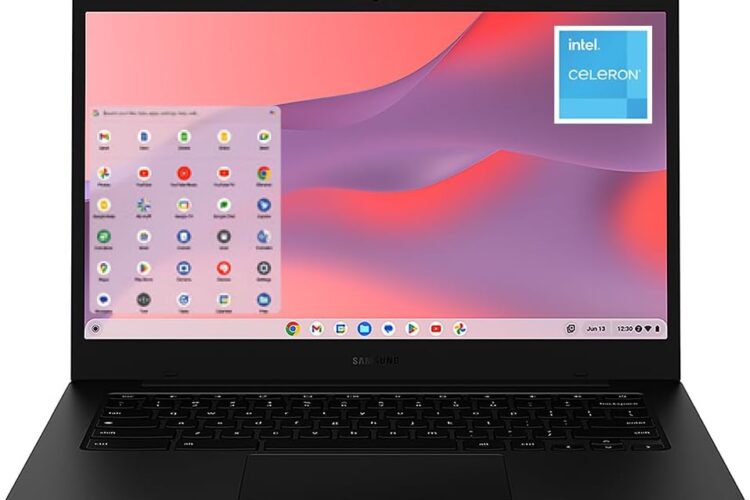
There is a certain kind of laptop that does not try to do everything. It is not built for video editing, it does not run the latest AAA games, and it will not replace a workstation. What it does instead is handle the things most people actually need a laptop for — browsing, writing, communicating, learning — and it does those things reliably, without a complicated setup process or a steep learning curve.
The Samsung Galaxy Chromebook Go 14-inch fits squarely into that category. Built around ChromeOS, powered by an Intel Celeron N4500 processor, and designed with a clean silver finish, it is a machine aimed at students and everyday users who need something dependable without overcomplicating things.
This article breaks down everything worth knowing about this laptop — what it includes, how it can realistically be used, who it suits best, and what limitations to keep in mind before making a decision.
What Is the Samsung Galaxy Chromebook Go?
Before diving into the specifics, it helps to understand what a Chromebook is and what sets it apart from a traditional Windows or macOS laptop.
A Chromebook runs ChromeOS, an operating system developed by Google. It is built primarily around the Chrome browser and Google’s ecosystem of apps and services. Most of the work happens online or through web-based applications, though ChromeOS also supports Android apps through the Google Play Store, which significantly expands what you can do on the device.
Chromebooks are generally designed to be lightweight in terms of both physical weight and software complexity. They start up quickly, require minimal maintenance, and receive automatic security updates from Google. For users who live primarily in a browser — which includes the vast majority of students and general users — the experience is smooth and straightforward.
The Samsung Galaxy Chromebook Go is one of Samsung’s entries in this category, positioned as an accessible, student-friendly option with a 14-inch screen and a form factor designed for portability and durability.
Key Features of the Samsung Galaxy Chromebook Go 14-inch
Intel Celeron N4500 Processor
The Intel Celeron N4500 is a dual-core processor from Intel’s Jasper Lake generation, designed specifically for entry-level and education-focused devices. It is not a high-performance chip in the traditional sense, but it is well-matched to what ChromeOS requires.
ChromeOS is a lightweight operating system that does not demand the same processing power as Windows. The combination of the N4500 and ChromeOS means the system can handle web browsing, document editing, video calls, and media streaming without feeling sluggish under normal conditions. Tasks that would strain this processor on a Windows machine — like running heavy desktop software or managing many resource-intensive background processes — simply are not part of the Chromebook workflow.
For students attending virtual classes, writing papers in Google Docs, researching topics online, and communicating via email or messaging apps, this processor handles the load comfortably.
4GB RAM
4GB of RAM is the baseline for ChromeOS devices, and it functions differently here than it would on a Windows laptop. Because ChromeOS manages memory more efficiently and does not run the same kind of background processes that Windows does, 4GB goes further on a Chromebook than on a traditional PC.
That said, there are practical limits. Running many browser tabs simultaneously, especially tabs with video or interactive content, will begin to slow things down. Users who tend to keep dozens of tabs open at once may notice occasional lag. For focused, task-oriented use — one or two active tabs, a Google Doc, and a video call — 4GB is generally adequate.
64GB Storage
Local storage on a Chromebook works differently from traditional laptops. ChromeOS is designed around cloud storage, and most files are stored in Google Drive rather than locally on the device. The 64GB internal storage is used for the operating system, downloaded Android apps, and any files the user chooses to keep offline.
For the typical Chromebook user, 64GB is sufficient. School assignments saved to Google Drive, streaming music and video rather than downloading it, and using web-based tools rather than locally installed software all reduce the demand on local storage. Users who prefer to store large files locally — offline video libraries, for example — will run into limitations faster.
14-inch Display
The 14-inch screen gives this laptop a comfortable working size that is larger than many budget Chromebooks, which often come in 11-inch or 12-inch configurations. More screen space means more room for reading, writing, and keeping multiple windows visible at once.
The display uses a standard resolution appropriate for the screen size, delivering clear enough image quality for everyday tasks. It is not a high-resolution panel, and it does not have the color accuracy of premium displays, but for schoolwork, video calls, and general browsing it performs as expected for this category.
The anti-glare coating on the screen is worth mentioning — it reduces reflections in bright environments, which is practical for students working near windows or in varied lighting conditions.
ChromeOS Operating System
ChromeOS is the defining feature of this device in many ways. It shapes the entire user experience, determines what software can run on it, and influences both the strengths and limitations of the machine.
On the positive side, ChromeOS is fast to start up, simple to navigate, and inherently secure. Because most processing happens through the browser and the OS itself has a small footprint, the system boots in seconds and rarely requires manual maintenance. Automatic updates run in the background without interrupting work, and the security model is designed to minimize the risk of malware — a meaningful advantage for students and less technically experienced users.
The Google ecosystem integration is seamless. Gmail, Google Docs, Sheets, Slides, Google Meet, and Google Drive all work natively and efficiently. For students whose schools use Google Workspace for Education — which a large number do — this laptop fits directly into that workflow without any additional configuration.
ChromeOS also supports Android apps through the Google Play Store. This expands the software library considerably, adding productivity apps, educational tools, creative apps, and entertainment options that go well beyond what the browser alone can offer.
MIL-STD-810H Durability Rating
One of the features that sets the Galaxy Chromebook Go apart from some competitors in this price range is its MIL-STD-810H durability certification. This is a military-grade standard that tests devices against conditions including drops, vibration, humidity, temperature extremes, and dust.
For a student laptop, this certification is genuinely relevant. Laptops carried in backpacks, used in classrooms, taken on public transportation, and handled by younger or less careful users are subject to real physical stress. A machine built to a higher durability standard has a better chance of surviving the inevitable bumps and drops that come with student life.
This does not mean the laptop is indestructible, but it does suggest Samsung has built it with physical resilience in mind, which is a practical advantage in an educational setting.
Silver Design
The silver finish gives the Galaxy Chromebook Go a clean, professional appearance that is understated without being plain. It is a neutral color choice that fits equally well in a classroom, a library, a coffee shop, or a home study environment.
The overall build is slim and relatively lightweight for a 14-inch laptop, making it manageable to carry between locations throughout a school day.
How the Samsung Galaxy Chromebook Go Can Be Used
Academic Work and School Assignments
This is where the Galaxy Chromebook Go is most at home. The Google Workspace suite — Docs, Sheets, Slides, Forms, and Drive — covers essentially everything a student needs for written assignments, presentations, data work, and collaborative projects.
Google Docs in particular has become the standard for student writing at many schools. Real-time collaboration, automatic cloud saving, comment and suggestion features, and cross-device access make it a practical tool for group projects and individual assignments alike. The Chromebook handles all of this without any additional software installation.
For students in schools that use platforms like Canvas, Blackboard, Schoology, or Google Classroom, accessing these systems through the Chrome browser is simple and reliable.
Video Conferencing and Online Learning
Remote and hybrid learning has become a standard part of education at many levels, and the Chromebook Go handles video conferencing apps well. Google Meet runs natively and efficiently on ChromeOS. Zoom is available as an Android app through the Play Store. Microsoft Teams has web-based functionality through the browser.
The built-in webcam and microphone handle the basics of video calls adequately for classroom participation, virtual tutoring sessions, and online meetings.
Research and Web Browsing
For students spending hours conducting research, reading articles, and working across multiple browser tabs, the Chromebook’s tight integration with the Chrome browser makes for a fluid experience. Bookmarking, tab management, and Google Search work exactly as expected, and the device handles general web browsing without difficulty.
Extensions available through the Chrome Web Store can further customize the browsing experience — ad blockers, citation tools, grammar checkers, and reading aids are all accessible.
Entertainment and Media
Streaming video through YouTube, Netflix, Disney+, or similar platforms works smoothly on the Chromebook Go. The 14-inch display offers a comfortable viewing size for watching content during breaks or downtime, and the audio from the built-in speakers is acceptable for casual listening.
Android apps from the Play Store also open up gaming and entertainment options beyond what the browser offers. Casual games, music apps, and media players are all available.
Light Professional and Administrative Tasks
For adults using this laptop for light work — managing emails, joining virtual meetings, handling basic spreadsheets, or working on documents — the Chromebook Go covers the essentials. It is not suited to complex professional workflows involving specialized desktop software, but for task-based office work that happens primarily through a browser, it functions well.
Who This Laptop May Be Most Suitable For
The Galaxy Chromebook Go 14-inch aligns particularly well with a few specific user profiles.
Students at the middle school, high school, or undergraduate level who need a reliable, low-maintenance laptop for academic work are the most natural fit. The durability rating, Google Workspace integration, and lightweight ChromeOS experience all point in this direction.
Parents looking for a first laptop for a younger child — something durable, easy to manage, and not overly complex — will find the Chromebook Go a sensible option. ChromeOS is straightforward to use and parental controls are available through Google’s Family Link system.
Users who are transitioning from primarily using a tablet or smartphone and want a laptop with a physical keyboard for writing and more structured productivity work may find Chromebooks an approachable entry point.
Older adults or less technically experienced users who want something simple, secure, and low-maintenance for email, video calls, and general browsing will appreciate ChromeOS’s uncomplicated interface and automatic update system.
Budget-conscious buyers who need a functional laptop for everyday tasks without the cost of a premium Windows or macOS machine will find the Chromebook Go a reasonable option for the use cases it covers.
Important Things to Consider Before Deciding
Software Compatibility ChromeOS does not run traditional Windows or macOS applications. If you rely on specific software — Adobe Photoshop, Microsoft Office desktop apps, specialized industry tools, or Windows-only programs — a Chromebook will not meet that need. Web-based alternatives exist for many applications, and Android app versions cover some gaps, but this is a genuine limitation that is worth evaluating honestly against your needs.
Offline Functionality Chromebooks are designed with an internet connection in mind. While many Google apps have offline modes that work reasonably well, the overall experience is noticeably more limited without a connection. For users in areas with reliable internet access, this is rarely a significant problem. For users who frequently work offline, it is worth thinking through.
Memory Limitations 4GB of RAM works well for focused tasks but can become a bottleneck for users who multitask heavily with many browser tabs or run multiple Android apps simultaneously. If heavy multitasking is a consistent part of your workflow, this is a constraint to be aware of.
Storage and Cloud Dependency 64GB of local storage fills up faster than it might seem if Android apps are installed regularly or if large files are downloaded. Most Chromebook users manage this comfortably through Google Drive, but users who prefer or require significant local storage will need to factor this in.
ChromeOS Auto Update Expiration Google provides automatic software and security updates for Chromebooks for a set number of years from the device’s release. After the Auto Update Expiration date, the device will no longer receive new ChromeOS updates. This is a characteristic of all Chromebooks and is worth checking for any model you consider purchasing, as it affects the long-term usability of the device.
Processing Power Ceiling The Celeron N4500 handles ChromeOS tasks well but has a clear ceiling. Tasks that demand sustained processing power — video editing, running complex Android applications, or heavy multitasking — will push the chip beyond its comfort zone. For the use cases this laptop is designed for, this is rarely a problem, but it is useful context.
How the Galaxy Chromebook Go Compares in General Category Terms
Entry-Level Chromebook vs. Mid-Range Chromebook Within the Chromebook category, the Galaxy Chromebook Go sits at the accessible end of the spectrum. Mid-range Chromebooks typically offer more RAM, faster processors, higher-resolution displays, and sometimes touchscreen functionality. If the budget allows and the use cases justify it, stepping up to a mid-range model provides more headroom. For users whose needs are straightforward and budget is a primary consideration, the Go covers the essentials without unnecessary additions.
Chromebook vs. Budget Windows Laptop A budget Windows laptop at a similar price point will run Windows software but typically struggles under the weight of the Windows operating system on entry-level hardware. ChromeOS is genuinely better matched to modest hardware, which often makes a Chromebook feel faster and more responsive than a Windows laptop with similar specs. The trade-off is software compatibility — Windows laptops run a far broader range of applications.
14-inch vs. Smaller Chromebooks Many student-focused Chromebooks come in 11-inch or 12-inch sizes. The 14-inch screen on the Galaxy Chromebook Go is a meaningful upgrade in terms of usability and comfort, particularly for extended writing sessions or reading-heavy tasks. The trade-off is slightly more weight and a larger physical footprint in a bag.
Chromebook vs. iPad with Keyboard Tablets with keyboard attachments occupy a similar space in terms of portability and everyday use. iPads generally offer better display quality and a broader app ecosystem, but they are typically more expensive and the keyboard experience on a dedicated laptop is generally more comfortable for extended typing. The Chromebook Go offers a more traditional laptop experience at a lower entry point.
Frequently Asked Questions
Can I use Microsoft Office on this Chromebook? Microsoft Office web apps — Word, Excel, PowerPoint, and others — are accessible through a browser at office.com and function reasonably well for everyday tasks. Android versions of these apps are also available through the Google Play Store. Full-featured desktop versions of Office do not run on ChromeOS, but for most student and general use, the web and Android versions cover the basics.
Does this laptop support touchscreen input? The Samsung Galaxy Chromebook Go XE340XDA-KA2US does not include a touchscreen. It is a standard clamshell laptop with a physical keyboard and trackpad. Users looking for touch input would need to consider a different model.
How long does the battery last? Battery life varies depending on usage, screen brightness, and the applications running. ChromeOS is generally efficient with battery consumption, and Samsung lists this model as capable of extended use on a charge, though real-world results depend on how the device is used. Streaming video and running many apps will drain the battery faster than light document work.
Can I install apps on this Chromebook? Yes, through two main channels. The Google Play Store provides access to Android apps, which significantly expands the available software. Additionally, some Chromebooks support Linux app installation through a feature called Linux development environment, though this is more technically involved and better suited to experienced users.
Is this laptop good for younger students or children? The MIL-STD-810H durability rating makes it more resilient than many laptops at this level, and ChromeOS is straightforward enough for younger users to navigate. Google’s Family Link parental controls work with ChromeOS, allowing parents to manage screen time, app downloads, and content filters. For younger students, it is a reasonable option.
What happens when the ChromeOS auto-update expires? After the Auto Update Expiration date, the device will stop receiving new ChromeOS software updates. The laptop will still function, but it will no longer receive security patches or new features. It is worth checking Google’s official list of ChromeOS auto-update policies to confirm the update window for this specific model before purchasing.
Does it work with printers? ChromeOS supports printing through Google Cloud Print-compatible printers and through direct Wi-Fi printing with many modern printer models. Most major printer manufacturers have Android apps available through the Play Store as well. Older printers may require some additional steps to set up.
How does Google Drive storage work with this laptop? ChromeOS integrates Google Drive directly into the file management system. Files saved to Google Drive are accessible from any device with internet access, and many apps save directly to Drive by default. New Google accounts typically include 15GB of free Drive storage, which is shared across Gmail, Drive, and Photos.
Conclusion
The Samsung Galaxy Chromebook Go 14-inch is a laptop that knows its audience. It does not try to be a powerhouse machine, and it does not need to be. For students who need a reliable tool for schoolwork, communication, and online learning, it covers the core requirements in a durable, approachable package.
The combination of ChromeOS and the Celeron N4500 processor works well for the tasks this laptop is designed for. The 14-inch display offers more working space than smaller Chromebook options, the MIL-STD-810H certification adds genuine durability for everyday student use, and the Google ecosystem integration makes it a natural fit for schools and students already working within that environment.
The limitations are real and worth understanding clearly. Software compatibility, the dependency on internet connectivity, the 4GB memory ceiling, and the ChromeOS auto-update timeline are all factors that should be weighed against your specific needs before deciding. For users whose workflow fits within what ChromeOS offers, these are minor inconveniences. For users who need Windows software or heavy local processing, a different category of laptop would serve them better.
As with any technology purchase, the right fit depends entirely on how you plan to use it. Taking the time to honestly assess your needs against what this machine offers is always the most useful first step.